Focus Mode
Zoom In. The Noise Disappears. This Is Focus Mode.
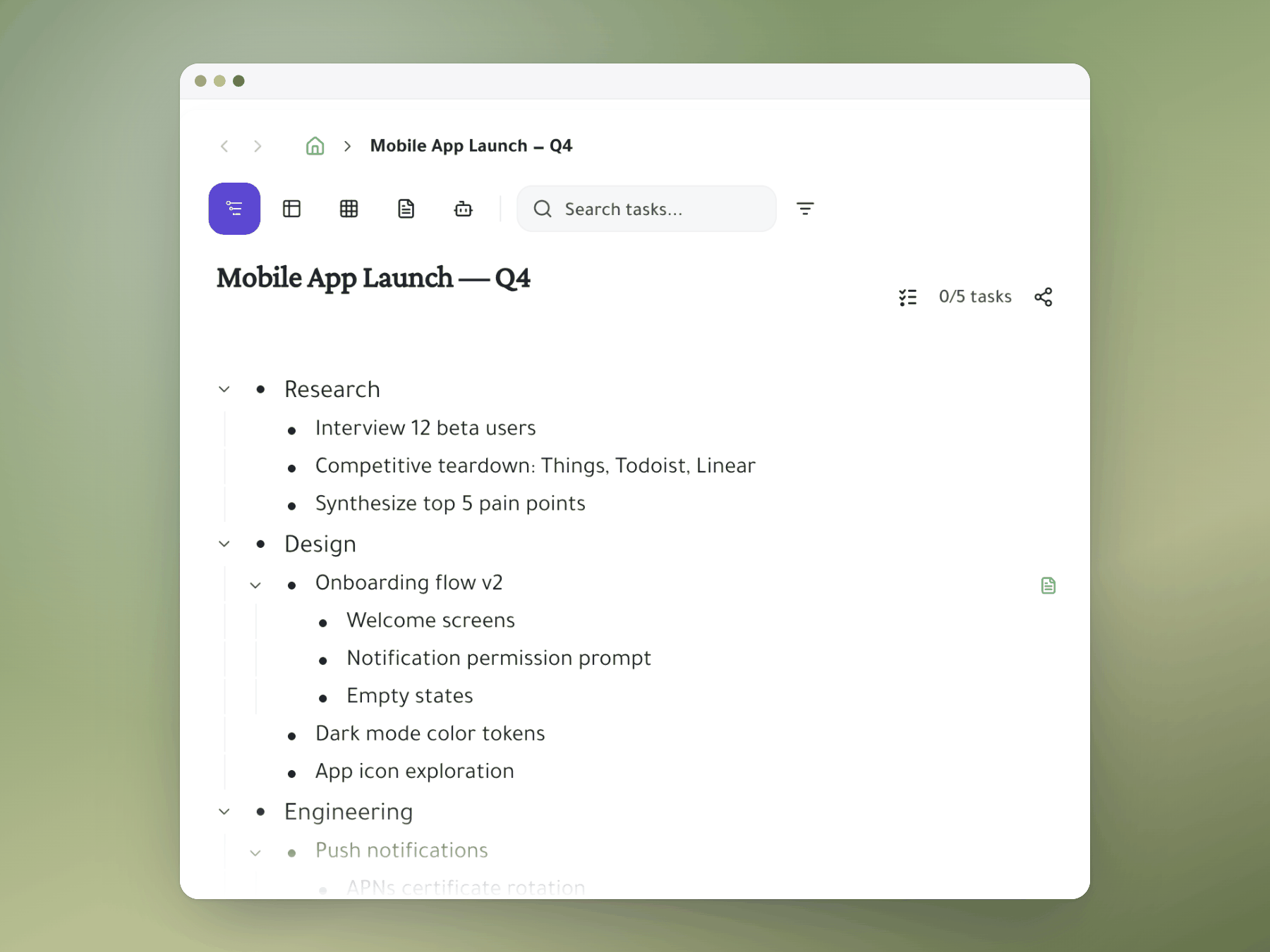
Navigate into any task branch and see only what matters right now. Everything else waits.
How it works
Everything it does, up close
Zoom into any task or project and see only what's inside it, while everything else waits out of sight.
Zoom into any task
Click into any project or task and its subtasks fill the screen.
- Any task: projects, epics or single tasks can be your view.
- Out of sight: other projects and team work stay hidden.
- One click: zoom in, and one click back out.
Less on screen, less strain
Seeing tasks you aren't working on wears you out, even when you ignore them.
- Research backed: unrelated items on screen use up working memory.
- Only your 5: hide the other 200 while you work.
- Less overwhelm: the visual noise goes away.
Bookmark your focus points
Every task has its own link, so you can bookmark the projects you open daily.
- Straight in: open your Design Sprint branch first thing.
- Switch contexts: move to your Personal branch in the evening.
- Tabs as contexts: each tab loads just that scope of work.
Focus plus Kanban for sprints
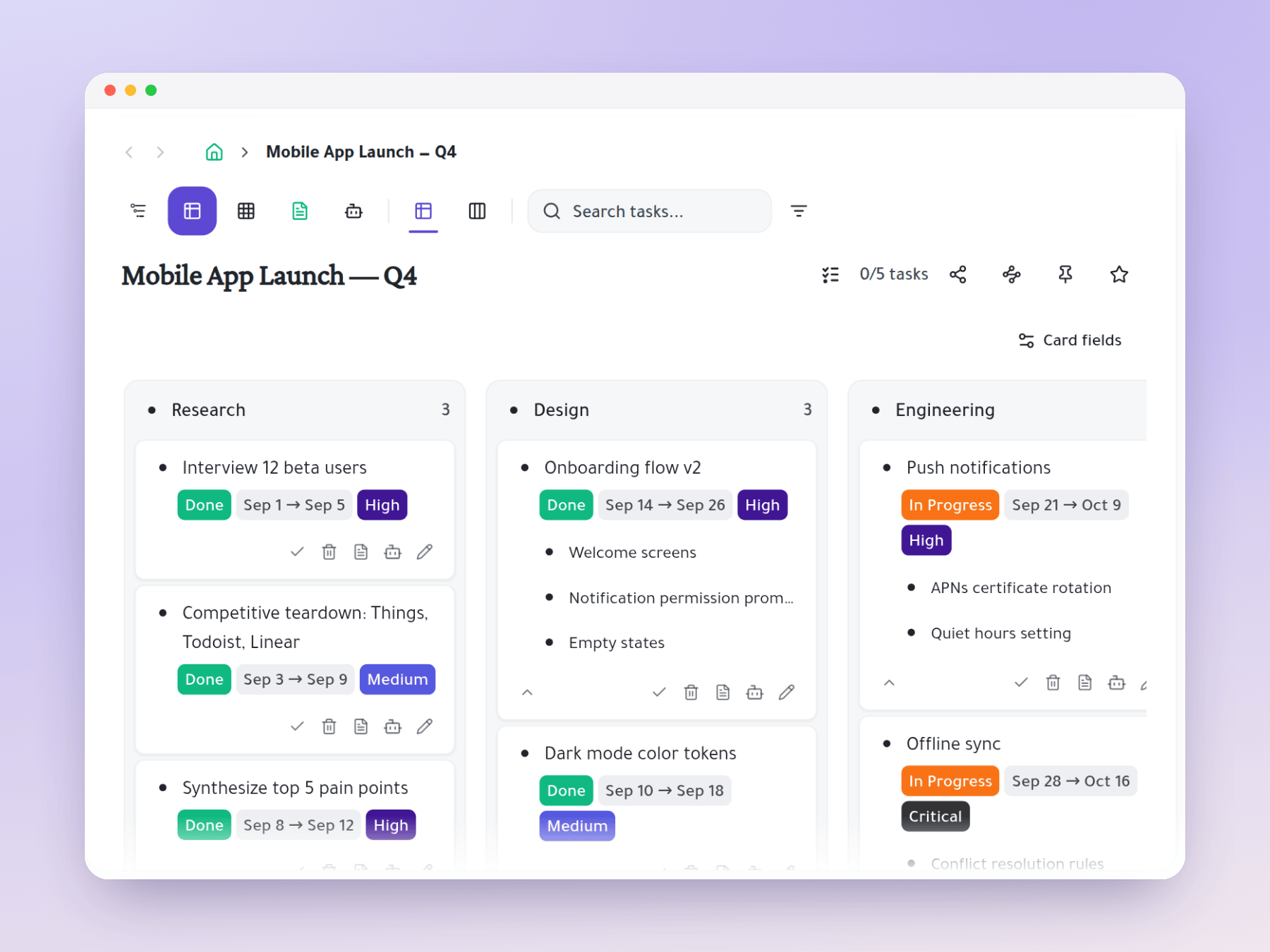
Zoom into your sprint, switch to Kanban, and see only that sprint's board.
- Just the sprint: no backlog, future sprints or other projects.
- Stay on track: keep sprint focus without losing the board.
- On purpose: the narrow view is the point.
Share a focused view
@mention a teammate on a task and they get a link to just that branch.
- Just that branch: they don't see the rest of your workspace.
- Enough context: everything they need to work with you.
- Privacy kept: nothing beyond what you shared.
Start organizing your way
One task, many places
Mirror a task into any project and it stays in sync everywhere.
Six views, zero re-entry
Outliner, Kanban, Table, Gantt, Document and AI Execution chat — all on the same tasks.