Write Context Around Your Tasks. No Notion Tab Required.
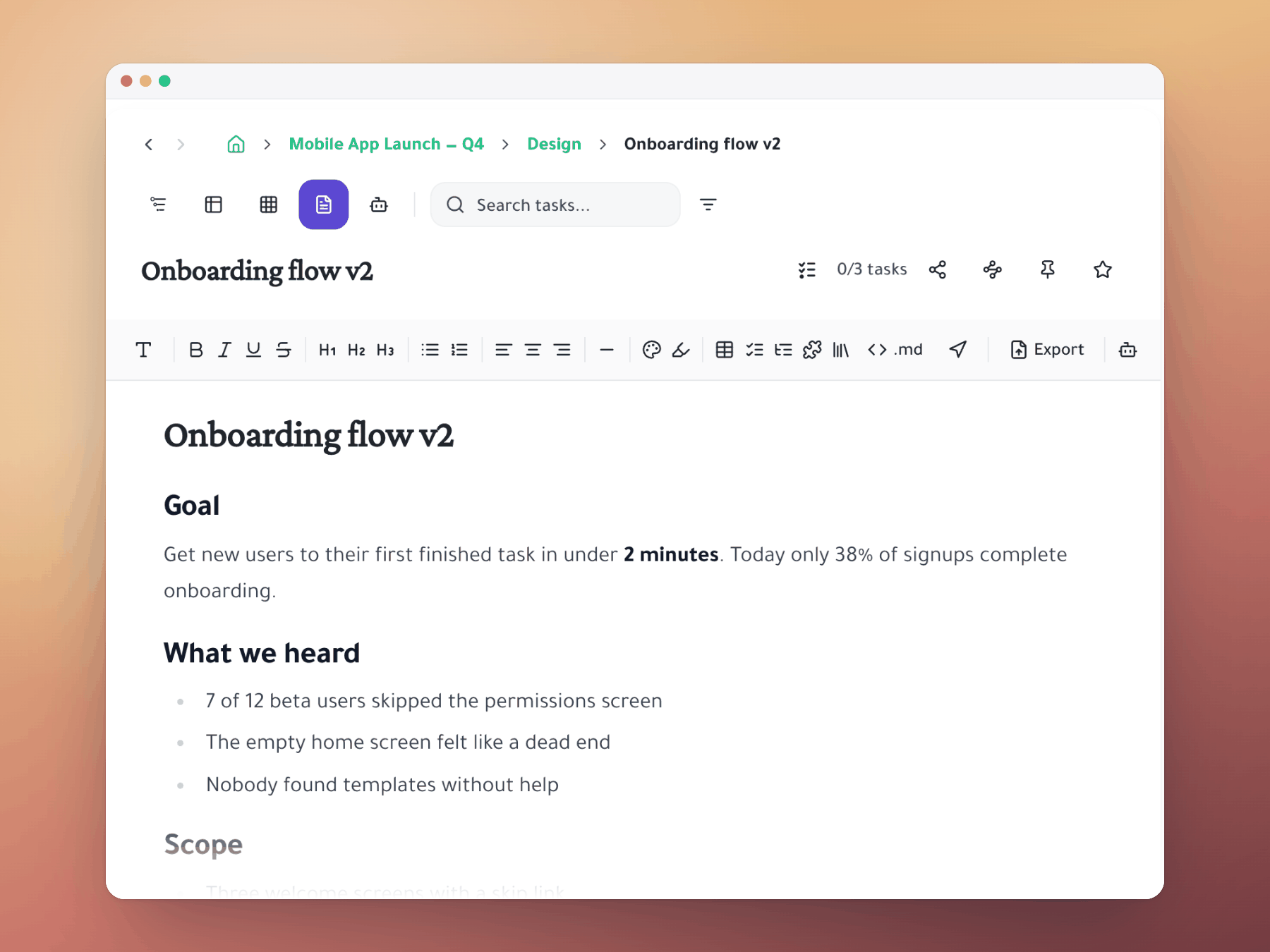
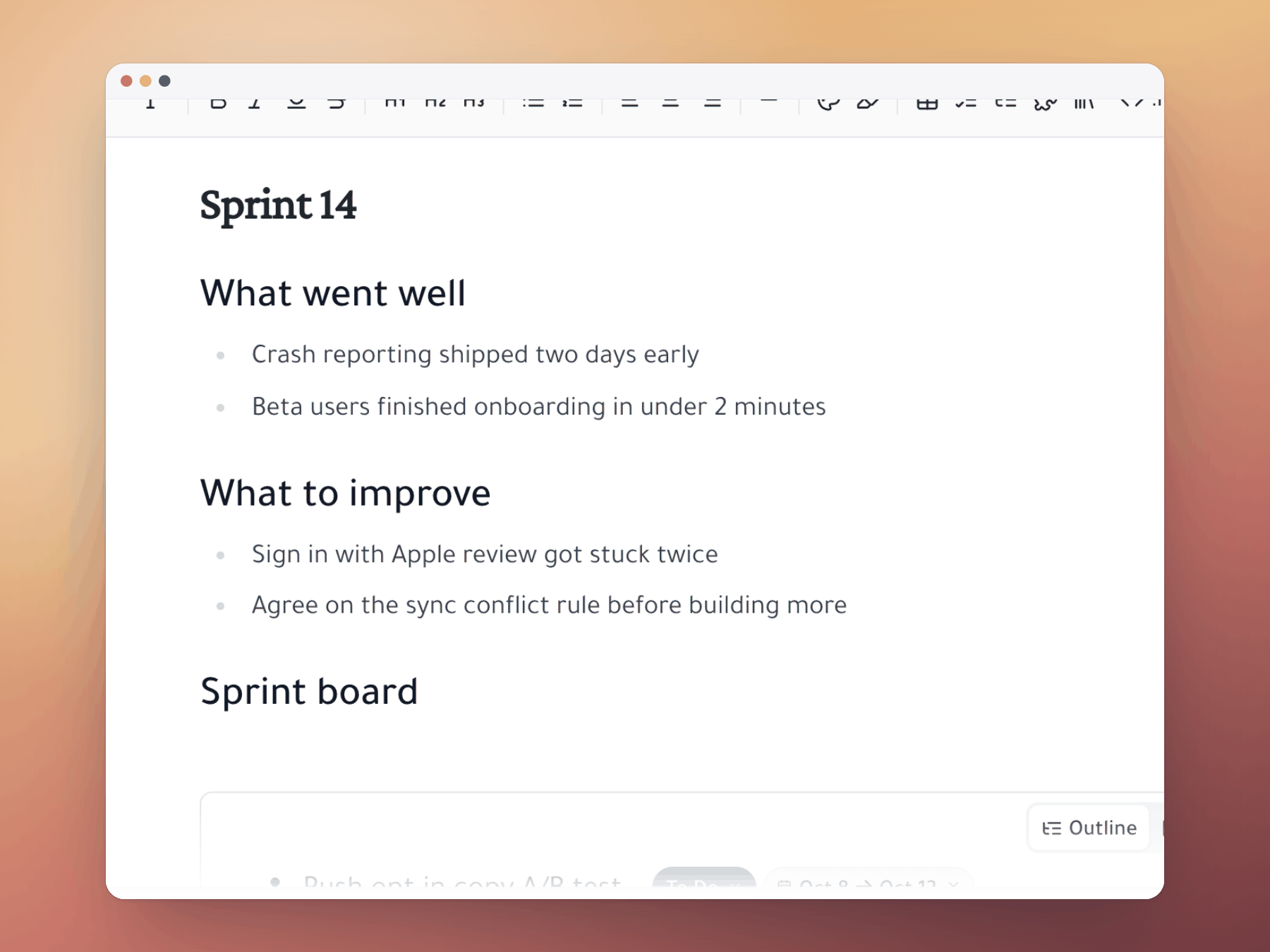
Document view lets you write specs, briefs, and decisions directly alongside the tasks that execute them.

How it works
One task, multiple homes, multiple users
Product teams have the same workflow everywhere: write the feature spec in Notion, create the implementation tasks in Jira, and then spend the rest of the project trying to keep the two in sync. When requirements change, the spec gets updated in Notion — but the linked Jira tasks don't know. When tasks are closed in Jira, the spec doesn't reflect what was actually built. Taskpend's Document view eliminates the gap by letting you write directly alongside your tasks in the same workspace.
Rich Text Editing in the Task Context
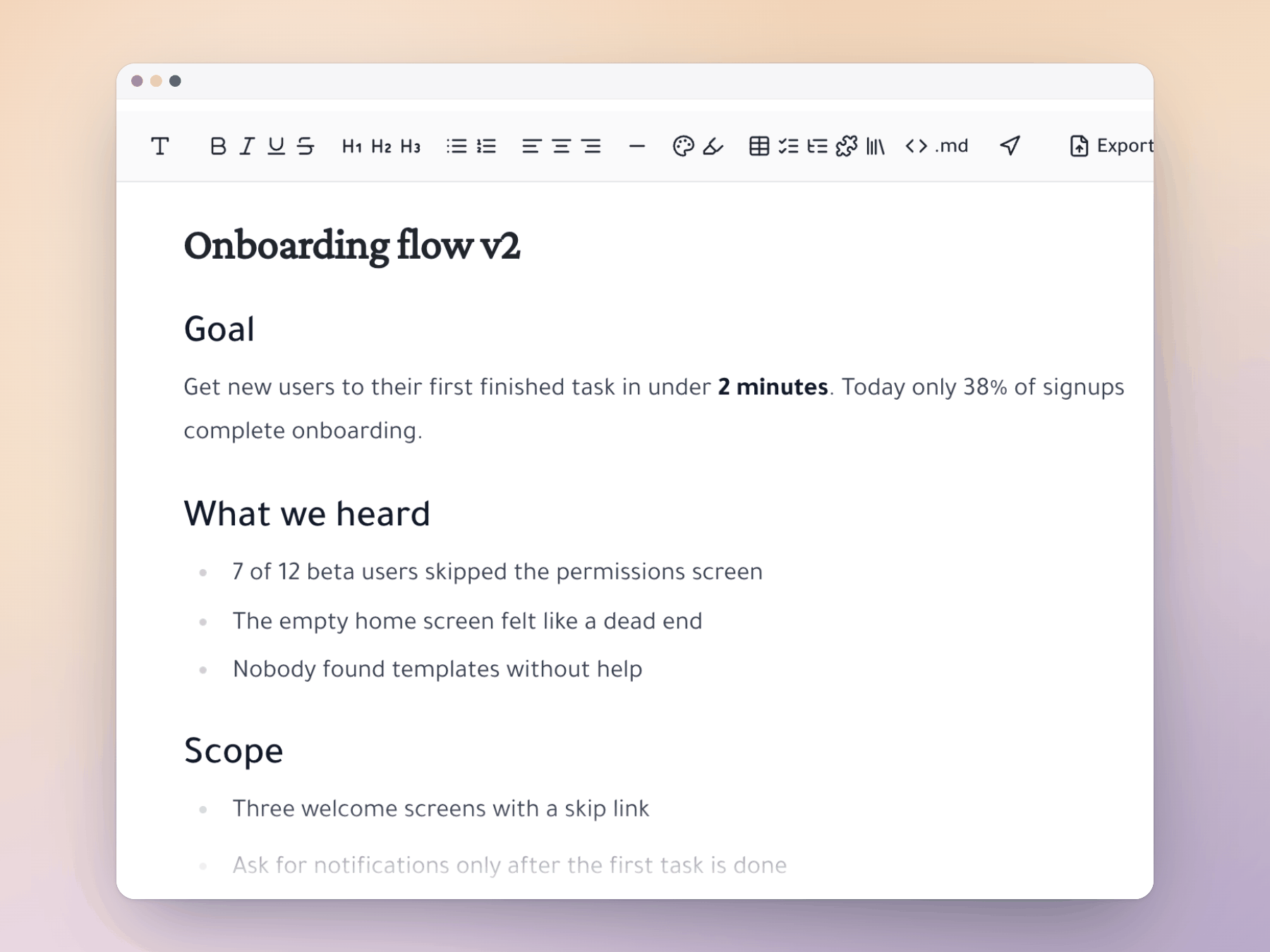
Switch any task or project branch to Document view to access a rich text editor. Write formatted content with headings, bullet points, bold/italic text, and code blocks. The document content lives on the task itself — not in a separate document linked from outside. When you zoom into a feature task, you see both the task hierarchy and the written context in one view.

Specs and Tasks: Never Separated Again
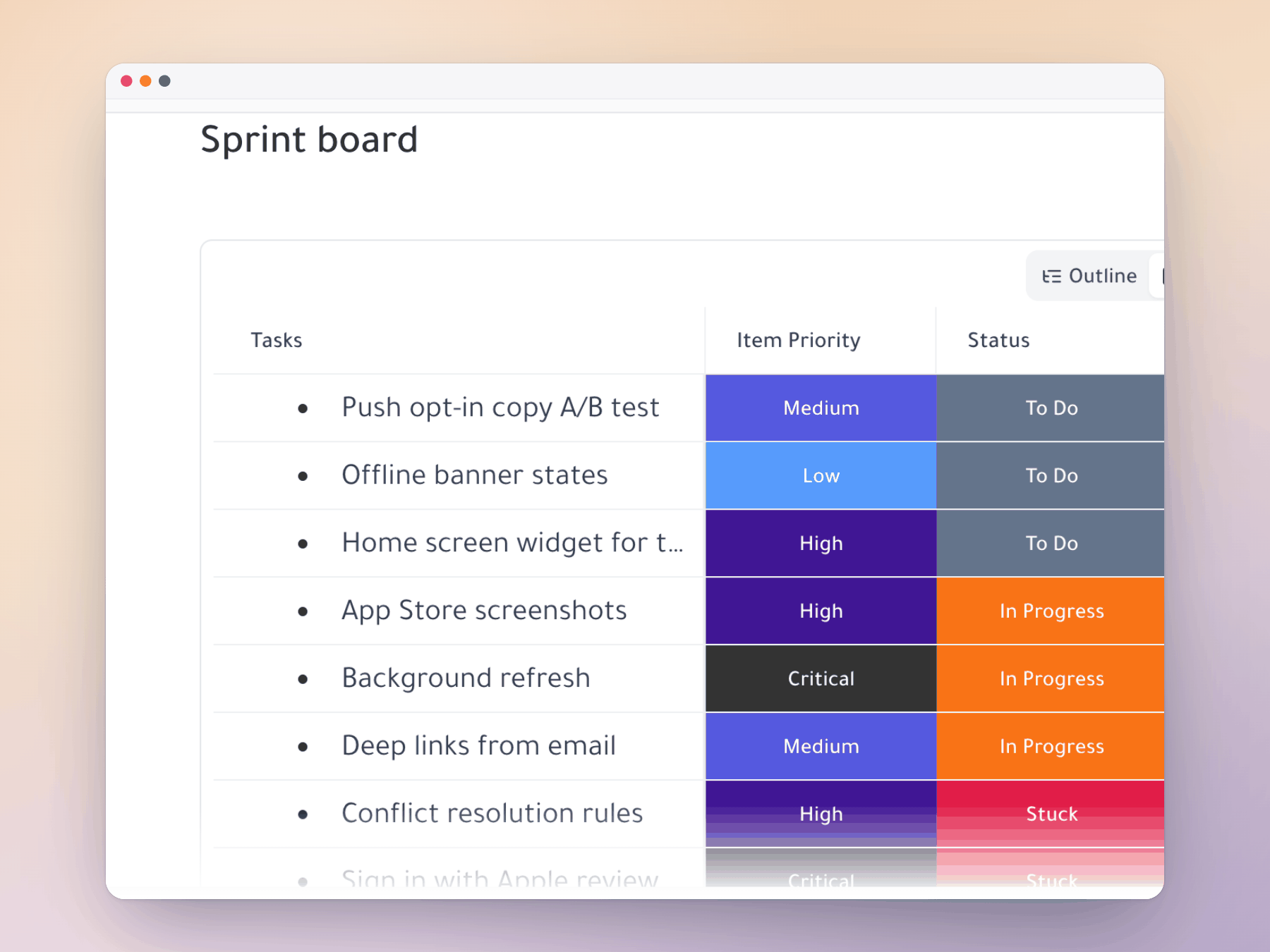
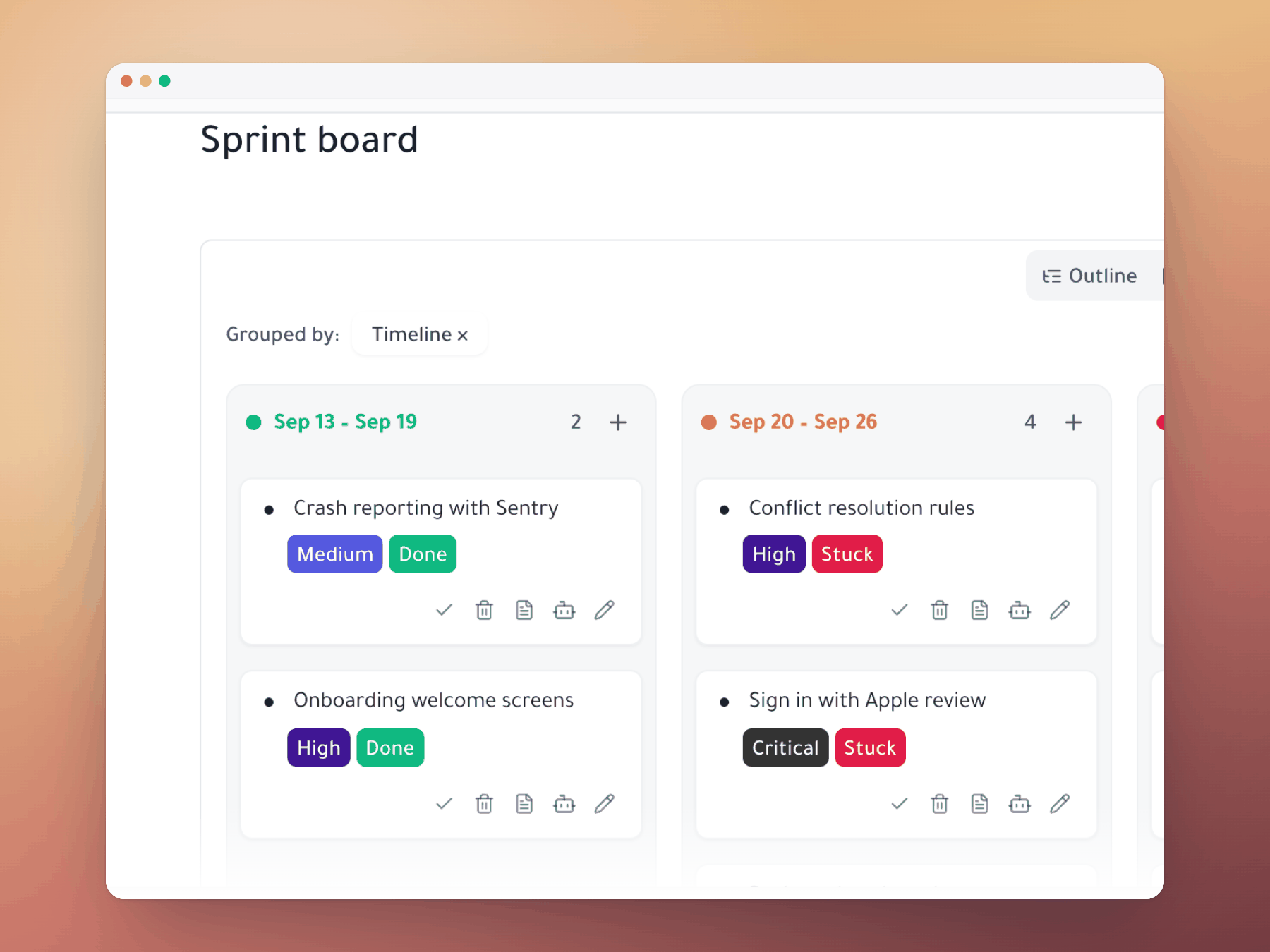
Create a feature task at the epic level. Switch to Document view and write the product specification. Switch to Outliner view to see the implementation subtasks. Switch to Kanban to track execution status. All three views — the spec, the hierarchy, the board — are the same data, seen different ways. The spec is always alongside the tasks. The tasks always have the spec context. No links, no sync, no drift.

Meeting Notes Inside Project Branches
Use Document view to write meeting notes directly in the relevant project branch. Weekly planning notes live in the sprint task. Client call notes live in the client project branch. Decision logs live in the feature they affected. Context stays with the work it affects — searchable, indexed, always findable at the right depth in your task tree.
AI to Generate Task Breakdowns Inside Documents
In Document view, use AI slash commands to generate a task breakdown from written context. Describe the feature or project in natural language, then use /ai to convert the description into a structured subtask hierarchy inline. The document becomes an executable spec: written context at the top, AI-generated task hierarchy below, ready to assign and execute.
When to Use Document View vs Outliner
Use Outliner view when the primary need is task structure — creating, nesting, and organizing tasks. Use Document view when context matters — when you need to write around tasks, add specifications, or create reference content. Most project branches benefit from starting in Document view (write the spec) and switching to Outliner (build the task hierarchy) after the context is established.
Start organizing your way
Free forever for individuals. No credit card required.
Mirror a task into any project and it stays in sync everywhere.
Outliner, Kanban, Table, Gantt, Document and AI Execution chat — all on the same tasks.
Free forever for individuals. No credit card required.